
Adjust contact details
You control the contact details that clients see in the booking view or receive for appointments with you via your own Contact Profile.
If you use timum within a CRM system in the Organizer view, first switch to the Manager view.
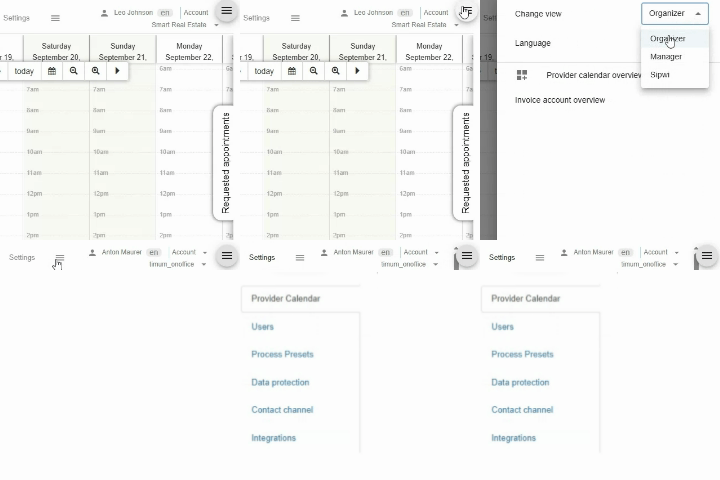
In the Manager view, switch to your Personal Settings in the top right corner, or go directly to the overview of your Provider Calendars.
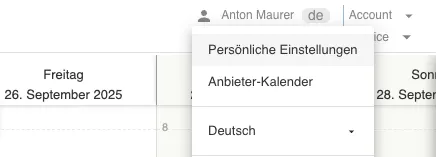
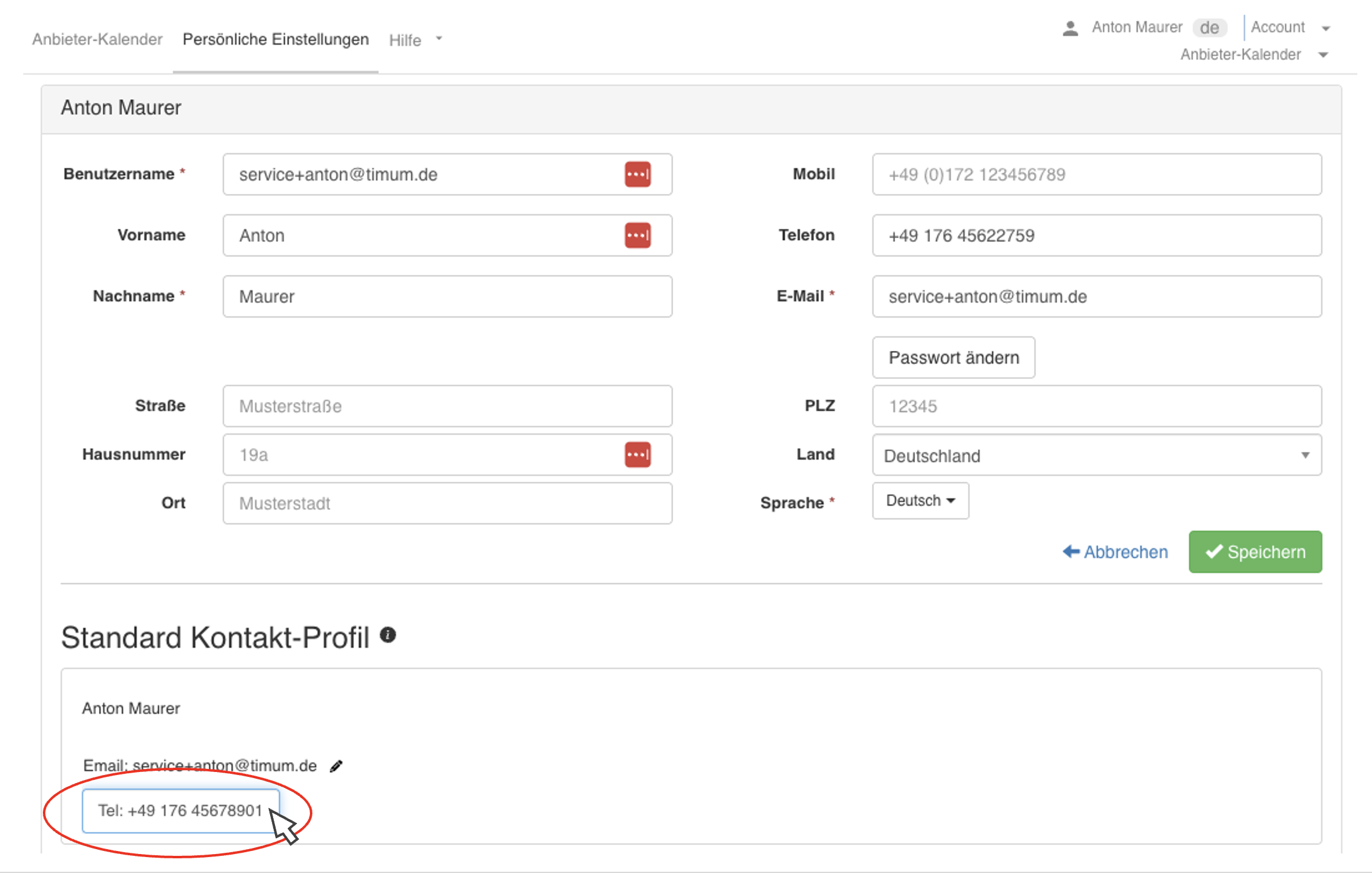
At the top, you will find your user data.
Below that, you will find your Default Contact Profile. Click an entry or the pencil icon to edit the profile. The details in your Default Contact Profile are the information that clients and contacts receive for appointments with you.
Here you can also choose not to provide an email address or phone number. To do so, click an entry to edit it, then click the trash icon that appears.
Individual Contact Profile per Provider Calendar
If you are a member of several Provider Calendars – for example, two real estate offices, an association, and your own calendar – your Default Contact Profile initially applies everywhere. If you want to show different contact details in one of these calendars, for example the office number instead of your mobile number or a different email address, create a separate contact profile there:
- Open the Provider Calendar tab in your Personal Settings. For each calendar you are a member of, you will see a tile; the Contact Profile button initially shows your Default Profile.
- In the tile of the desired calendar, click Contact Profile and then Add Contact Profile.
- Open the new profile via the three-dot button, enter the name, and use New Contact Type to add the phone number and email address that should apply in this calendar.
- Save. The new profile appears below your Default Profile and is used in this Provider Calendar from now on.
Your Default Contact Profile remains unaffected by this and continues to apply in all other calendars. For a use case involving teams where a central appointment coordinator is the contact person, see Appointment Coordinator Contact Differs from Real Estate Agent Contact.
What the Provider Calendar additionally controls
For teams where an appointment coordinator is the contact person, see Appointment Coordinator Contact Differs from Real Estate Agent Contact.