Exclusive Appointment Invitation
In addition to preconfigured booking links and self-configured booking channels (custom links and website plugins), timum offers you the option to create flexibly generated booking links with a specific selection of proposed time slots. This way, you can also grant booking access to closed (private) appointments, for example to invite an exclusive group of recipients to book a closed event that is not bookable via any other channel.
Booking links with special appointment selection
Here we present another option: appointment selection. You select specific appointments or availabilities and generate a booking link that offers a choice of exactly these times. Other bookable times in the resource's calendar remain hidden.
The use cases are varied. Here are two examples:
- Propose specific appointments to individual contacts
- Create a booking page for appointments spread over a longer period, e.g. seminars or course dates
Important
Here's how it works
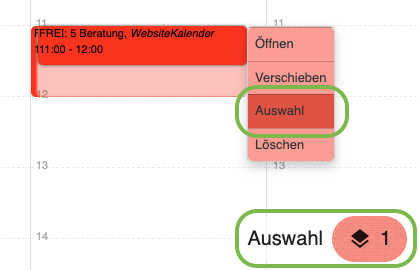
- Hover the mouse pointer over one of the appointments or an availability.
- Click "Select" in the context menu to add the appointment to the selection.
- A selection bar opens at the bottom of the screen.
- Proceed the same way with all appointments you want to add to the selection.
- After adding all appointments, click the selection button at the bottom of the screen.
- In the selection dialog, under the "Share as link" tab, you can optionally specify one or more bookable appointment types.
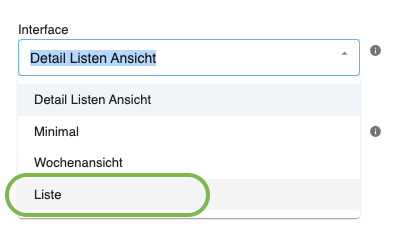
- You can also determine the booking view (interface). For a small number of appointments spread over a long period, the "List" view is recommended.
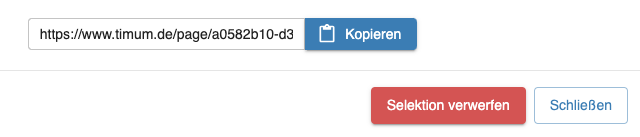
- Finally, copy the configured link so you can send it out for booking.
You control the booking rules for such selection links (e.g. request or direct booking, advance booking deadline, provider contact details) in the "SELECTION - Limited appointment selection" channel of the resource (see Resource Channels). If instead you want a permanent second link for selected contacts, read Second Booking Route for Exclusive Contacts.